To publish an Android app, you're going to need more than one icon. There's the Google Play Store icon, the traditional launcher icon, adaptive icons, and an optional monochrome icon for Android's themed icon system.
In this tutorial, we'll create all of them using ChatGPT, GIMP, and Inkscape. Both image editors are free, and you can use whichever AI image generator you prefer.
Watch the complete tutorial (4 minutes, 49 seconds)
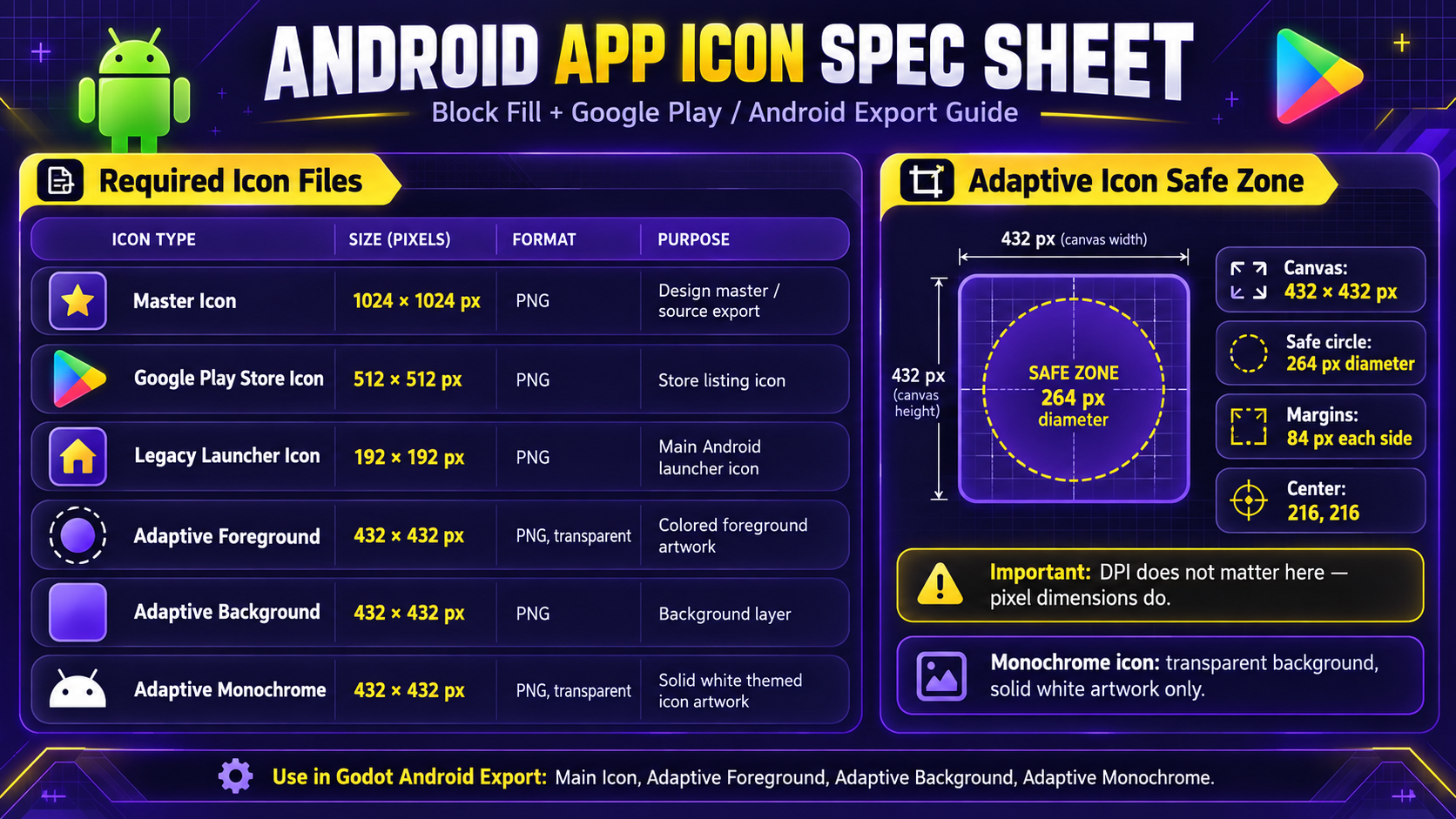
The Android icons we'll create
| Icon asset | Size |
|---|---|
| Google Play Store icon | 512 × 512 px |
| Legacy launcher icon | 192 × 192 px at xxxhdpi |
| Adaptive foreground | 432 × 432 px at xxxhdpi |
| Adaptive background | 432 × 432 px at xxxhdpi |
| Monochrome artwork | SVG, prepared on a 432 × 432 px canvas in our workflow |
The legacy launcher icon also needs smaller density-specific versions, which Android Studio can generate.
1. Generate your app icon using AI
Start by telling ChatGPT, Gemini, or another image generator that you're creating an icon for an Android app.
Describe your app, its purpose, and the visual style you want. For our demonstration, we're creating an icon for a puzzle game using the YouCanBuildTech color palette.
Once you're happy with the design, save the original high-resolution image.
2. Create the Google Play and legacy icons
Open your image in GIMP, a free, open-source image editor.
Scale your image to 512 × 512 pixels and export it as a PNG for Google Play. The file must be no larger than 1,024 KB.
Next, use Ctrl+Z to undo the scaling and restore the original high-resolution image. Then scale it down to 192 × 192 pixels for the xxxhdpi legacy launcher icon.
We're using cubic interpolation in the video to maintain good image quality during resizing.
3. Create the adaptive launcher icon
Modern Android icons use two layers: a foreground containing your main artwork and a background behind it.
Generate or prepare these as separate images.
Each layer should measure 432 × 432 pixels at xxxhdpi. Keep the important foreground artwork inside the central 264 × 264 pixel safe zone, leaving at least 84 pixels of margin on each side.
The foreground layer should have a transparent background, while the separate background layer should fill its entire canvas.
4. Create the monochrome icon
Android also supports themed icons that adapt to the user's system colors.
In the video, we generate an SVG version of our icon and open it in Inkscape, another free, open-source graphics editor.
Group the individual shapes, adjust the document dimensions, and center the artwork within the same safe zone used for the adaptive foreground.
Save the finished artwork as a plain SVG. The monochrome artwork can then be incorporated into your Android project's icon resources.
Check your finished icons
Before publishing, preview your launcher icons in Android Studio to check their appearance under different launcher shapes.
Your Google Play icon should also follow Google's official icon specifications.
And that's it. You now have the artwork needed for your store listing, legacy launcher icons, adaptive icons, and Android's optional monochrome icon.